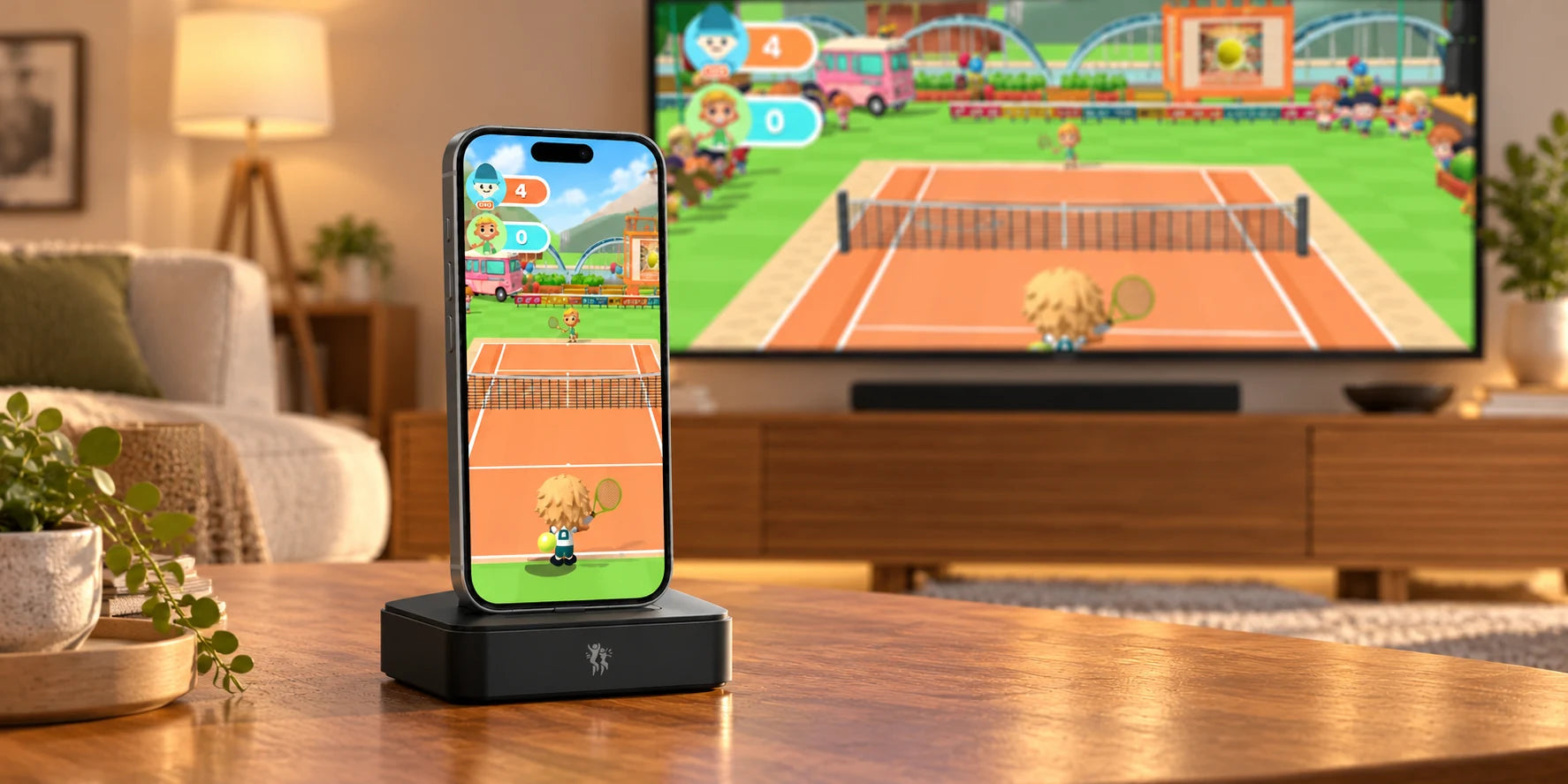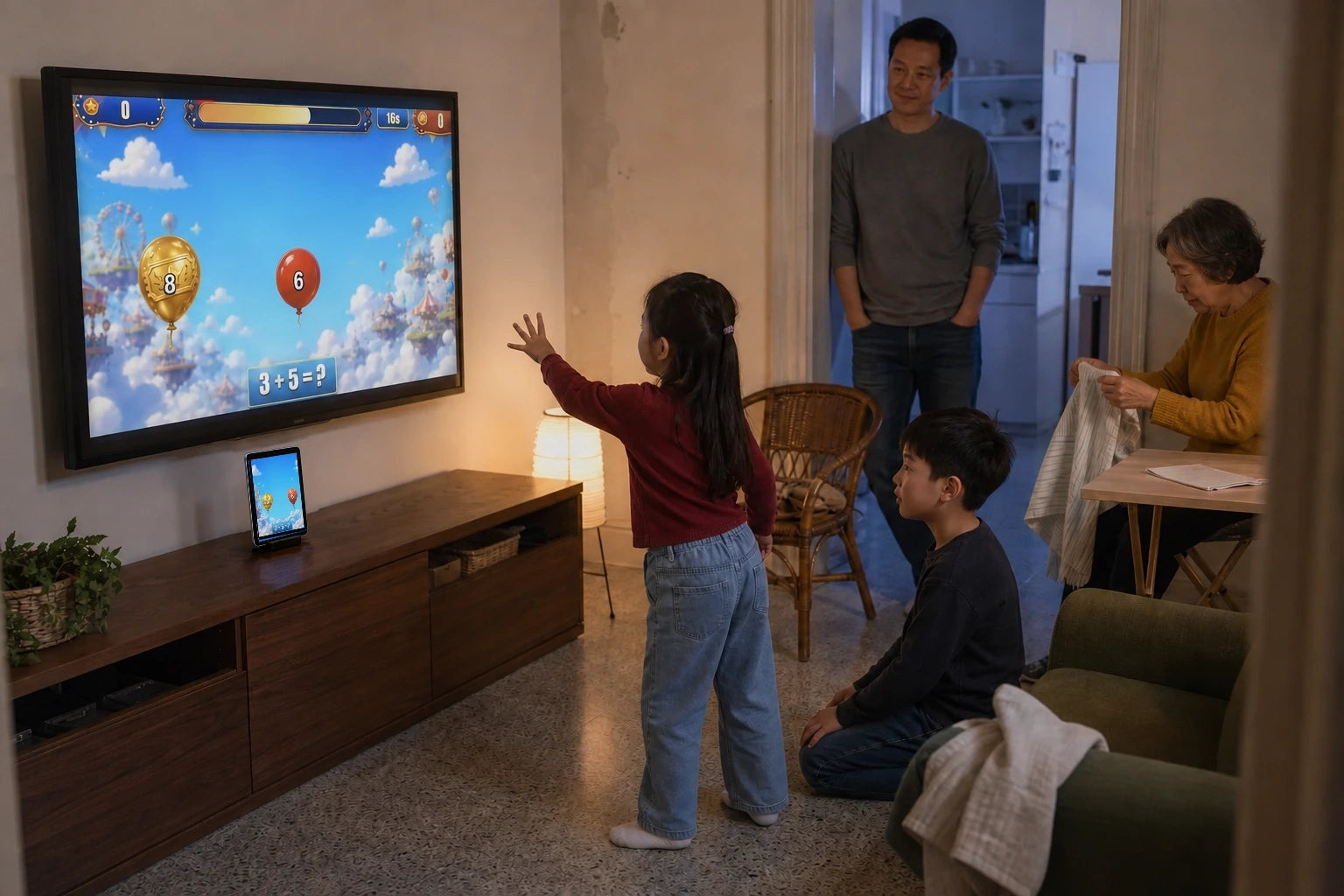
Better camera tracking starts with the room
Your own iPhone or iPad is the camera and the game controller. A clear view helps it follow your movements, so a few small room adjustments can get you back to the next balloon, save or rally.
Start with a clear view
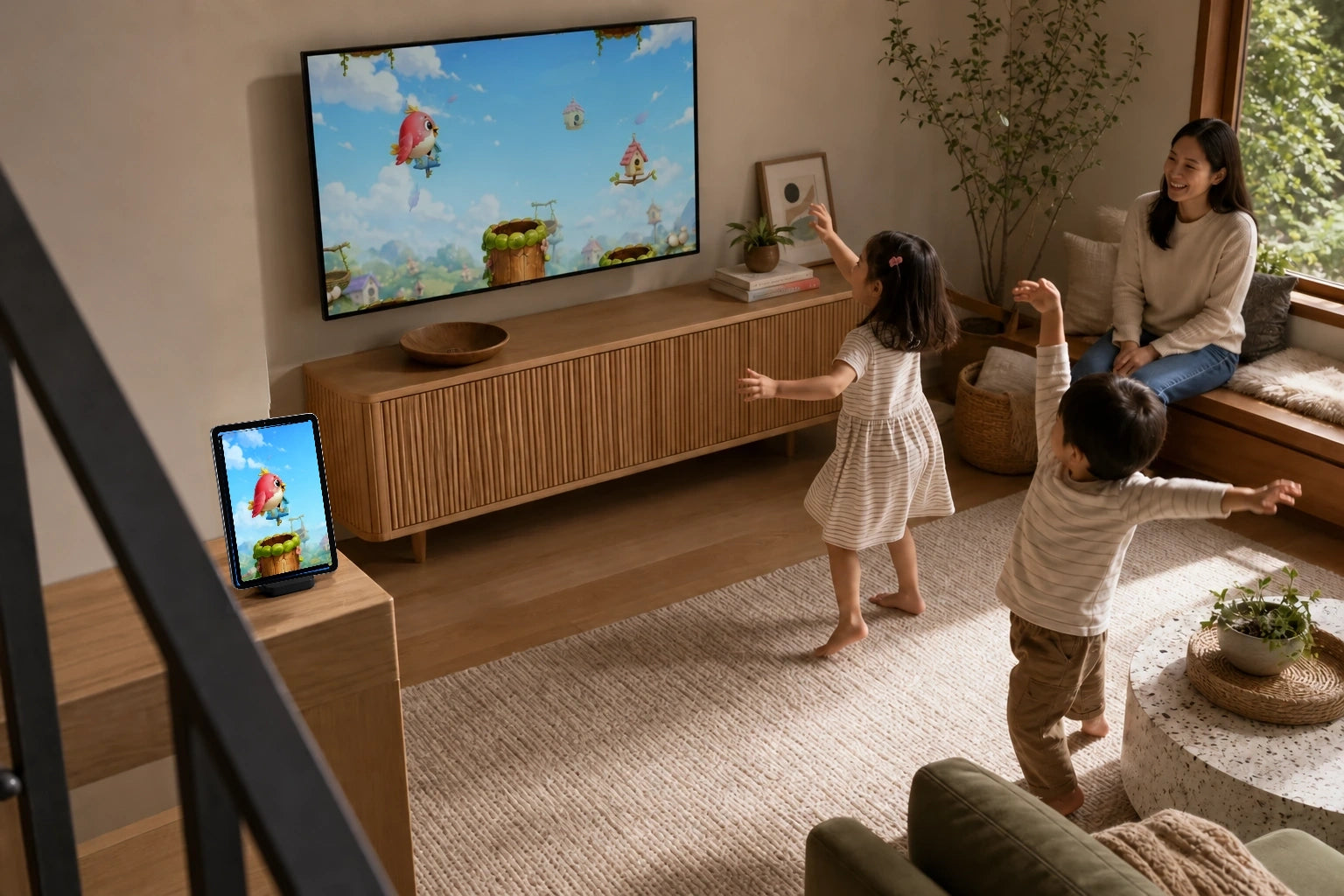
Allow Camera access for PlayDock Arcade so movement controls can work. If you have already declined it, check the app’s permissions in your device settings. Wipe the lens with a suitable soft cloth and look for a case, cable or object covering it. Face the device toward the player, rather than the ceiling or a nearby tabletop. Try the game’s camera prompt before changing the way you move.
Let the room light the player
Use even lighting so the player is easy to see on screen. A bright window behind them can turn their outline into a shadow; closing a curtain or changing the play position may help. Avoid pointing a lamp straight into the camera. Look at the preview before the round begins and make one small adjustment at a time. There is no special studio setup to assemble, just a clear view in your own room.
Make room for the next move
Follow each game’s framing prompt and leave space for the motions it asks for, such as raised hands or side steps. Keep the device steady on a stable surface, with cables away from feet. Recheck the view when players swap: a child and an adult may need different positions. Spectators can cheer from outside the moving area. If a round gets crowded, pause and reset before starting again.
The camera work stays on your device
Your iPhone or iPad processes the camera movement that becomes a game control. Raw camera video is not recorded or uploaded for gameplay tracking. You do not need to send a recording of your room to play. Optional casting shares the rendered game picture, including any camera view, and audio with your chosen receiver over your local network. That is separate from the movement tracking happening on your device.
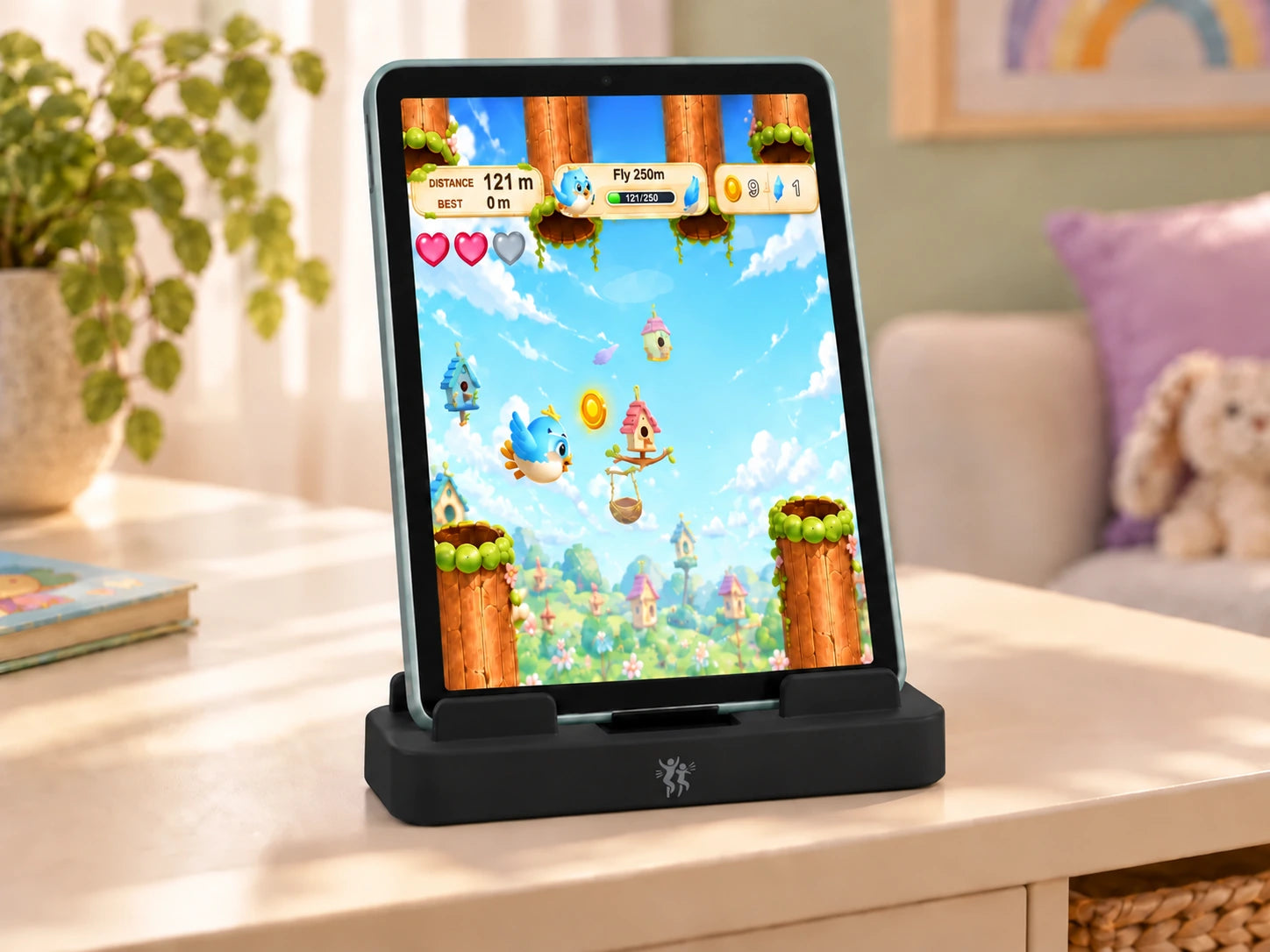
Use a practice turn to find your rhythm
Pick a game with a move that is easy to spot, such as reaching in Balloon Pop or returning a ball in Tennis Smash. Give yourself a short practice round and watch how your movement changes the action. If something is missed, check framing and light before trying larger movements. When you swap players, let the next person have their own practice turn. A new player does not need to match anyone else’s score.
Change one thing, then play again
Try a short round after each adjustment so you can tell what helped. If the issue continues, note your device model, software version, the game and what happens on screen. Support can work from that description; begin there rather than sharing a camera recording. Once the view is right, choose whether to retry your favorite challenge or switch games. The goal is getting back to a good turn, not spending the afternoon adjusting the room.