iPhone or iPad to TV: check these three things
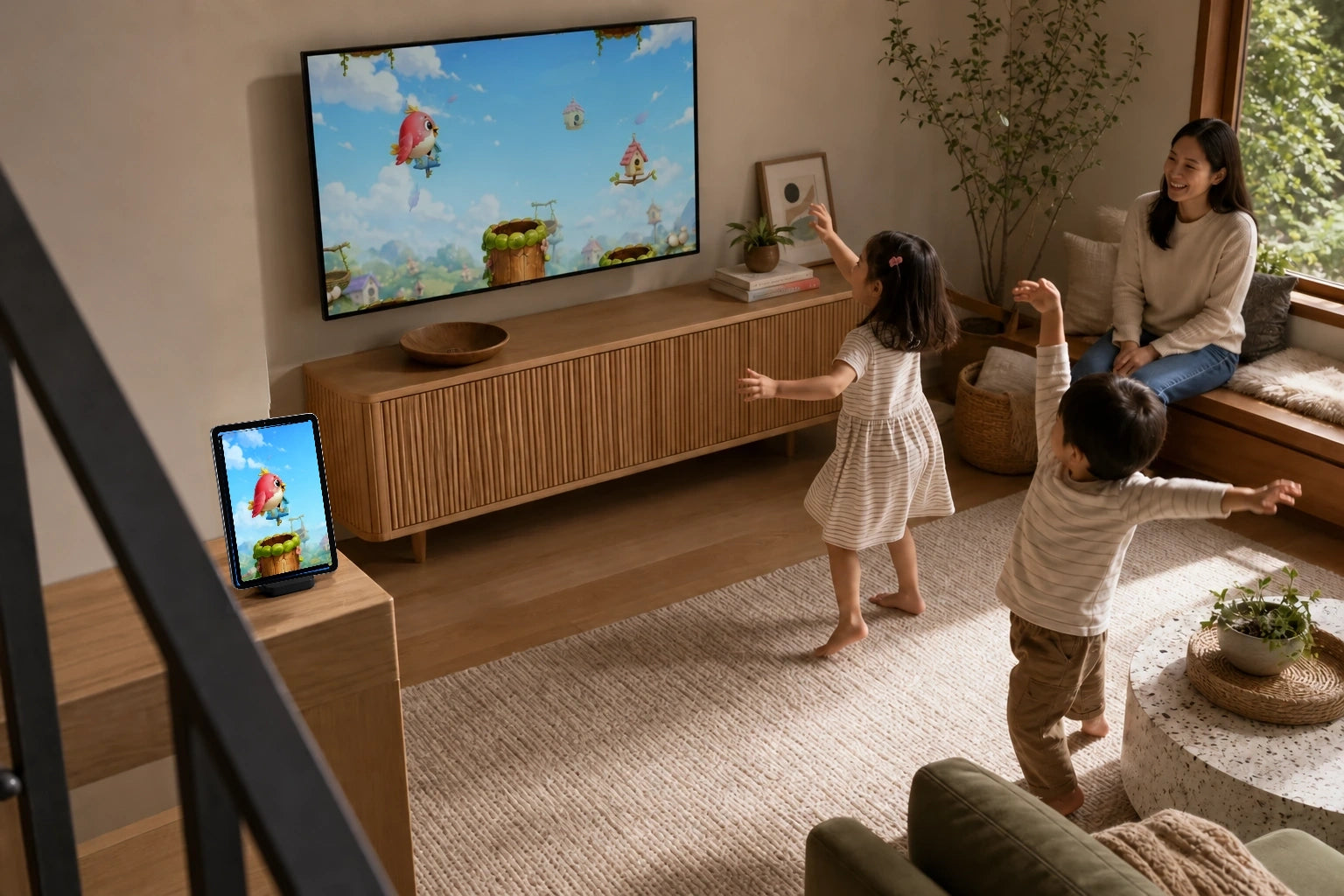
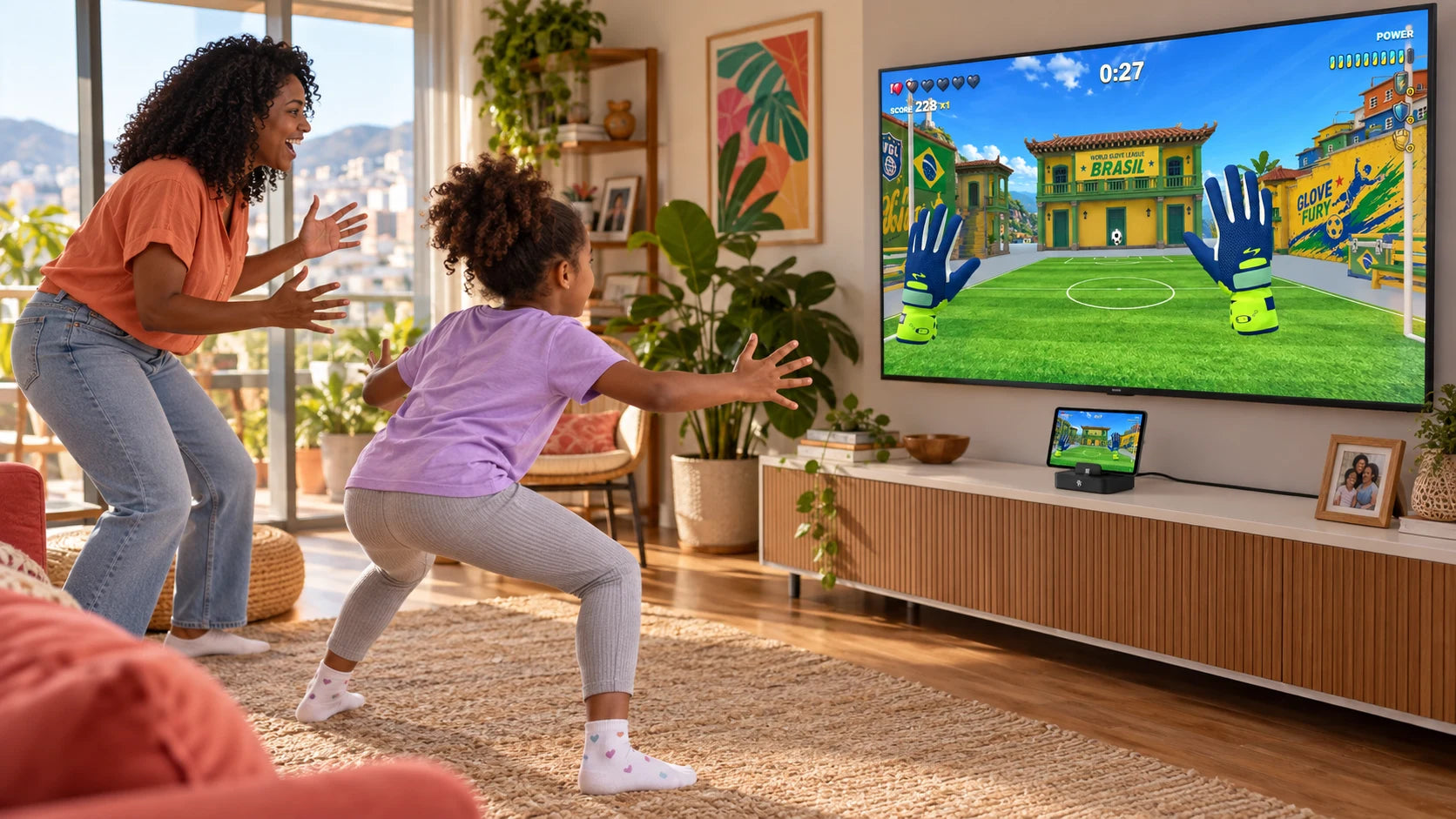
The camera, the game and the clever part are already in your compatible iPhone or iPad. A TV gives the room a bigger view. Check these three things, then pick a first game worth gathering around.
1. Start with the device you own
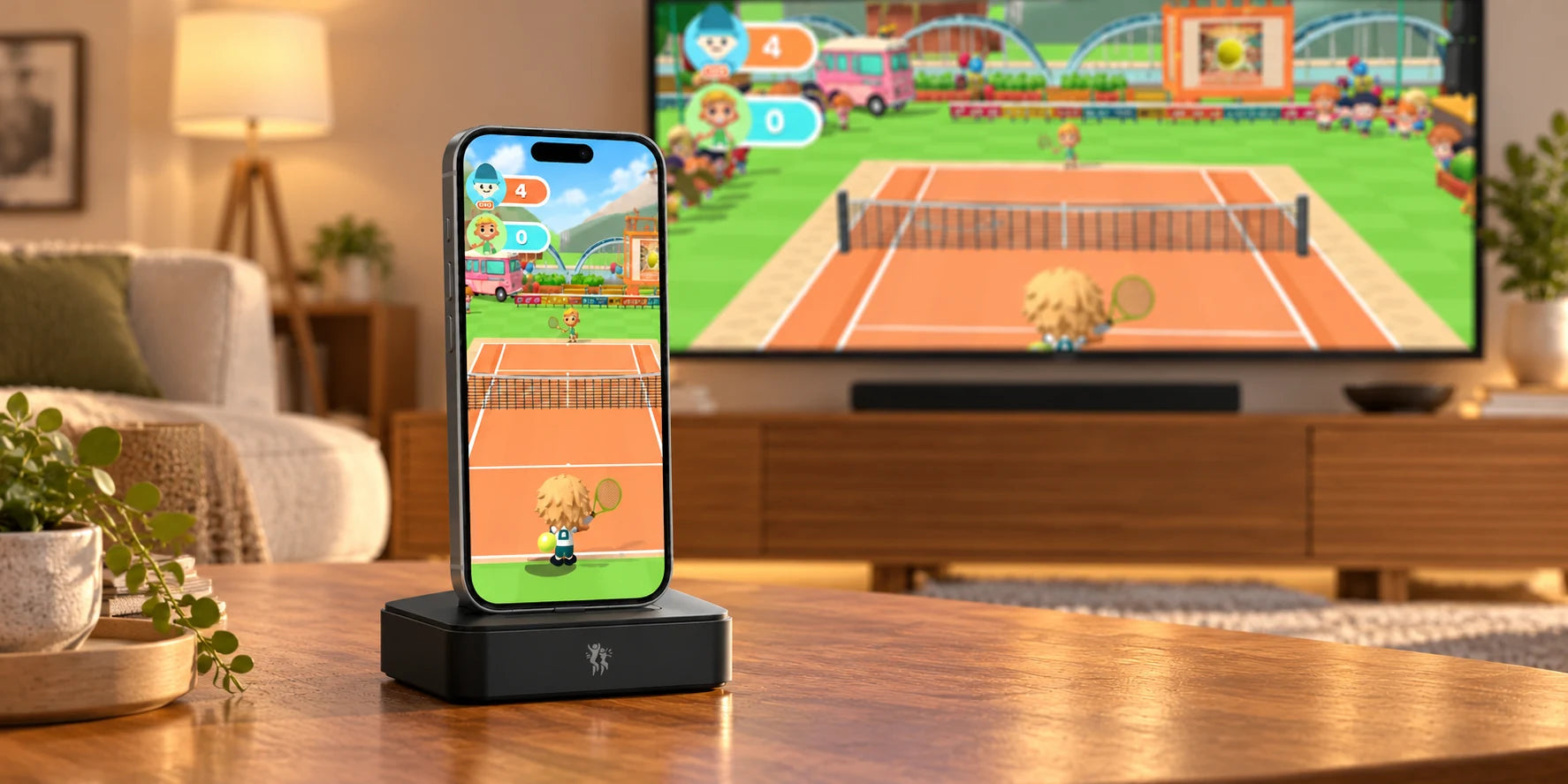
Your compatible iPhone or iPad runs PlayDock Arcade and uses its camera to follow movement. That means the TV is a bigger display for your game; it is not doing the tracking. Check your model and software version in Settings, then confirm app support. iOS or iPadOS 17 or later is the app requirement, but app support and wired TV output are separate checks. Playing on the device itself does not require a TV.
2. Give the game a bigger screen
For the Dock’s wired connection, confirm video output for your exact iPhone or iPad model. A USB-C socket alone does not guarantee it. You will also need an available HDMI input on the TV, an HDMI cable and USB-C power for the Dock. Connect the cables and select the matching TV input. Once the picture appears, everyone waiting for a turn can follow the action from a comfortable place outside the play area.
3. Keep the camera in the game
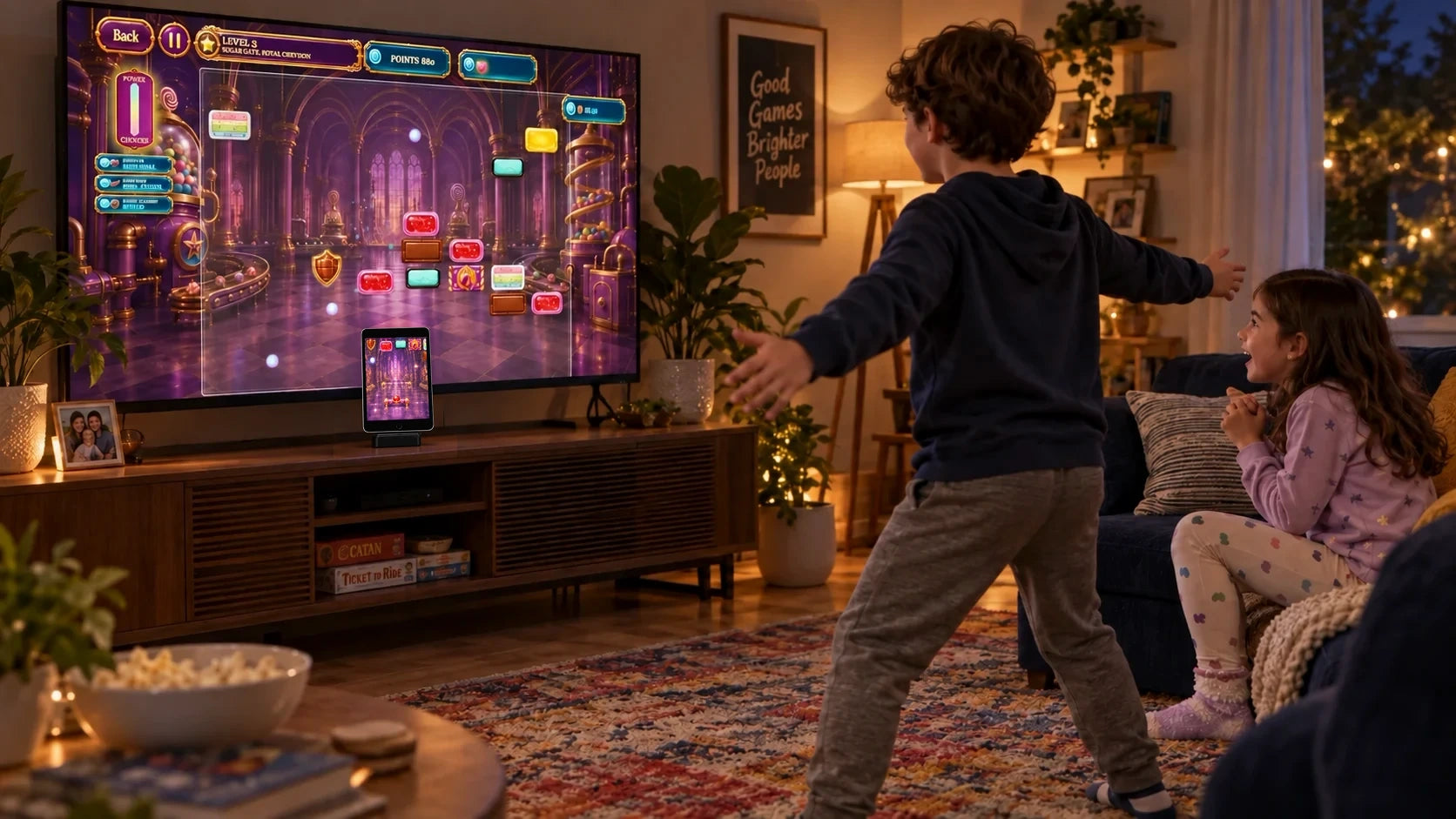
Seat the device without forcing the connector, checking whether a thick case prevents a secure fit. Keep the camera clear and face it toward the player. Use a stable surface; a tablet may need suitable additional support, and no tablet attachment is included with the Dock. Open a game and follow its framing prompt. Recheck the view when players swap, especially when a taller adult follows a child.
Make the first round a discovery round
Try Balloon Pop to learn what reaching does on screen, or Tennis Smash for a rally that the whole room can follow. Let the first person explore a round before anyone starts comparing scores. Then swap turns and let the next player choose a target of their own. Your PlayDock Dock includes 12 games and free monthly updates, with no game subscription, so there is plenty to explore after the first successful connection.
Your device keeps movement tracking local
Camera movement is processed on your iPhone or iPad. Raw camera video is not recorded or uploaded for gameplay tracking. If you use optional casting instead of the wired TV connection, the rendered game picture, including any camera view, and audio go to your chosen receiver over your local network. Internet access is still needed for app updates and game-media downloads. Choose your setup, get the games ready and then settle into play.
Leave a favorite ready for next time
After the first session, ask each person which game they would start with again. Download the media for those games while you are online, so the next visit can begin with a turn rather than a download. If the TV picture or camera view needs attention, pause and check one part of the setup at a time. The setup and support guides can help you get back to the next rally.